Don't Bug Dad CS

When time runs out, Dad speaks up.Because limits can be human too.

Parental control for Android: a daily limit, bedtime, app blocking and the phone's location. Your child always knows why an app is locked and when it comes back.

Android 8.0 and newer · 14 days free · no ads, no tracking

Yours
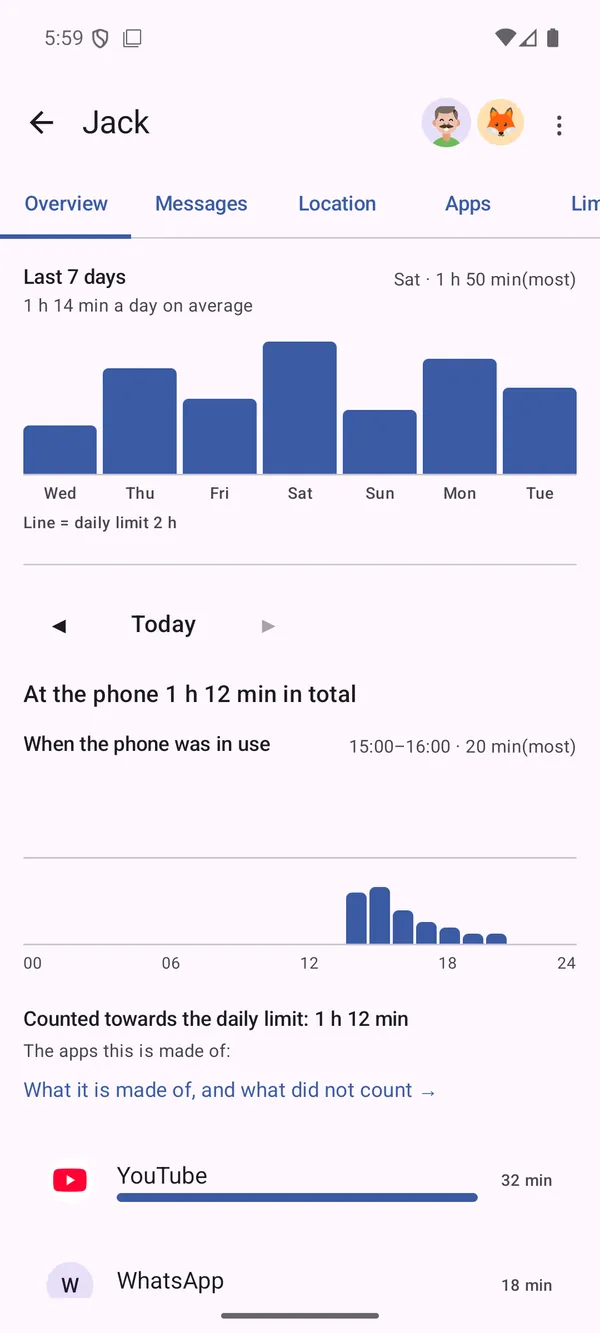
Parent overview: how much time the child spent today and this week, by hour and by app.
Child's
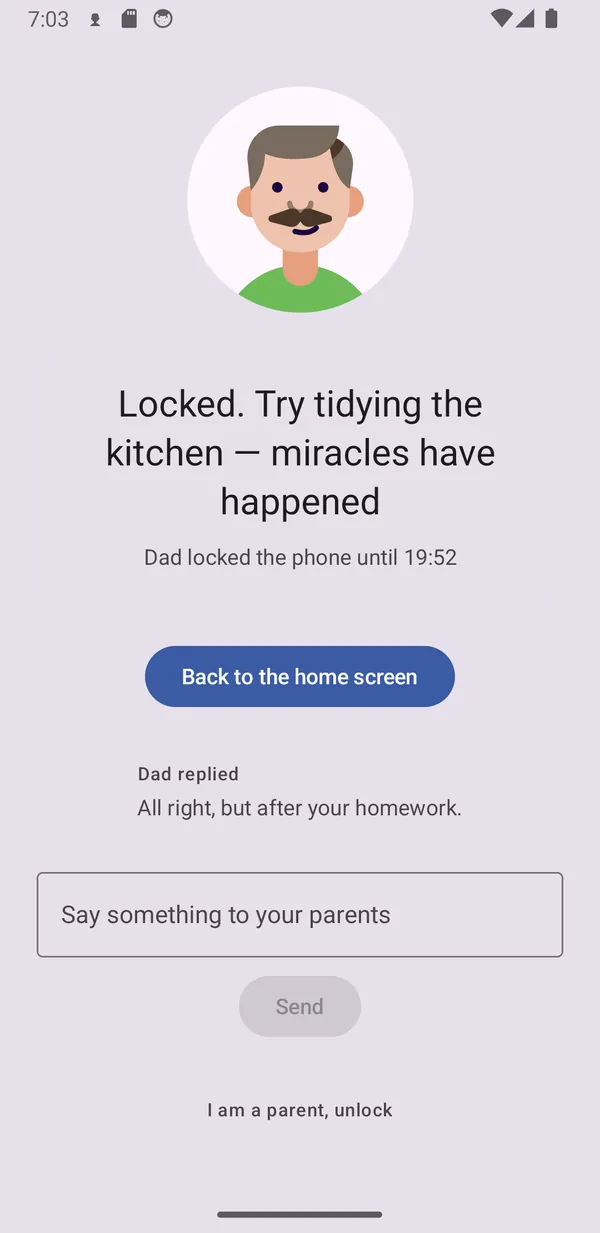
Block screen on the child's phone: Dad's character, the reason for the lock and a button to ask for time.

The three reasons people switch it on

Time, apps, place

Time

Daily limit and bedtime

You say how many hours a day and between which hours. When the limit runs out, apps lock until midnight — calls and the home screen keep working.

Apps

Block one app or a whole group

Block any app, always allow it, or give it its own limit. A rule can cover a whole group, so a game installed tomorrow falls under it too.

Place

Where the phone is

A map with the last position and saved places like Home or School that report arrivals and departures. And when the phone slips behind the couch, you make it ring.

Why this app exists

I'm a dad of three — they're six, ten and thirteen — and I went through several parental control apps. None of them stuck. A year in, I was still hunting for where things are set in one of them: it could do plenty, but nothing was where I expected it. The other promised it would hold the phone down completely, and all it took was turning the phone off and on again. My kids worked that out before I did.

So I wrote my own. Everything you can set for a child lives in six tabs and nowhere else. A restart doesn't bother it: supervision is back within half a minute. And it says its limits out loud — you'll find them further down this page, not in the reviews.

— Pavel, Prague
One app, two sides

What you see and what your child sees

The same app behaves differently on the parent's and the child's phone. The child is not a monitored object — they see the same rules you do.

Screen time by hour and by app

Overview Yours

Time today and this week. Tap a day for the breakdown: what counted toward the limit, what didn't, and why.

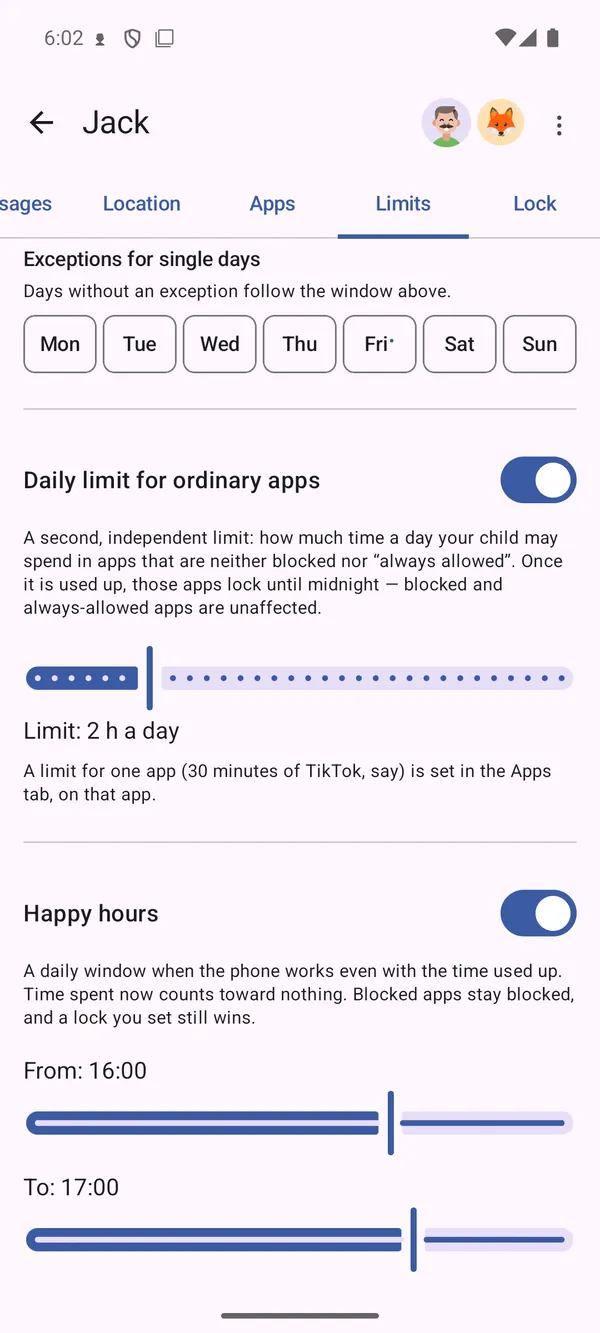
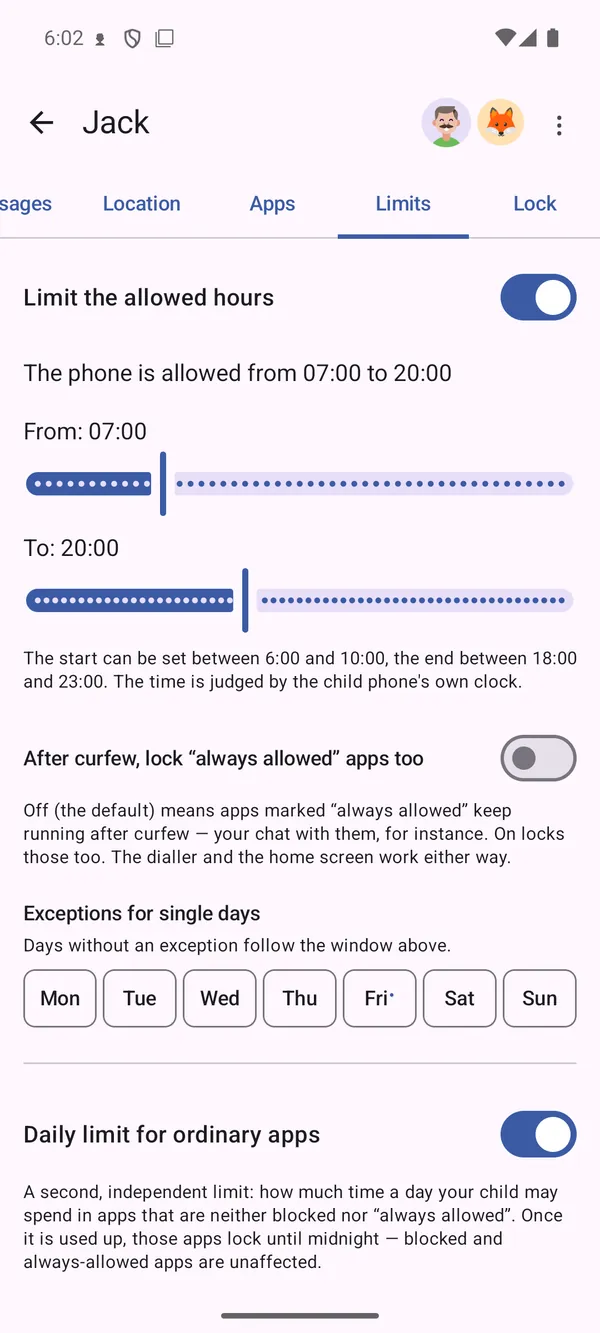
Allowed hours and daily limit settings

Limits and bedtime Yours

Allowed hours, exceptions for individual days, and the overall daily limit.

Happy hours window settings

Happy hours Yours

A window where the phone works even with the limit used up and time counts toward nothing. After homework, say.

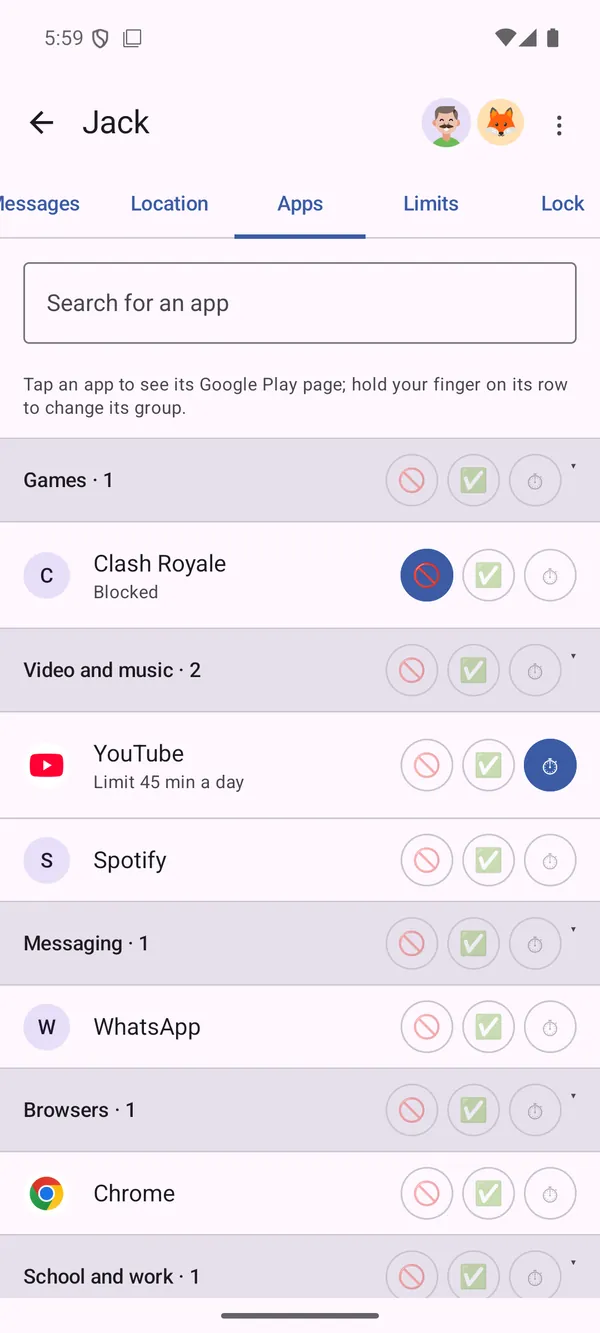
Apps on the child's phone, sorted into groups

Apps Yours

Every app in groups. Block it, always allow it, or give it its own cap.

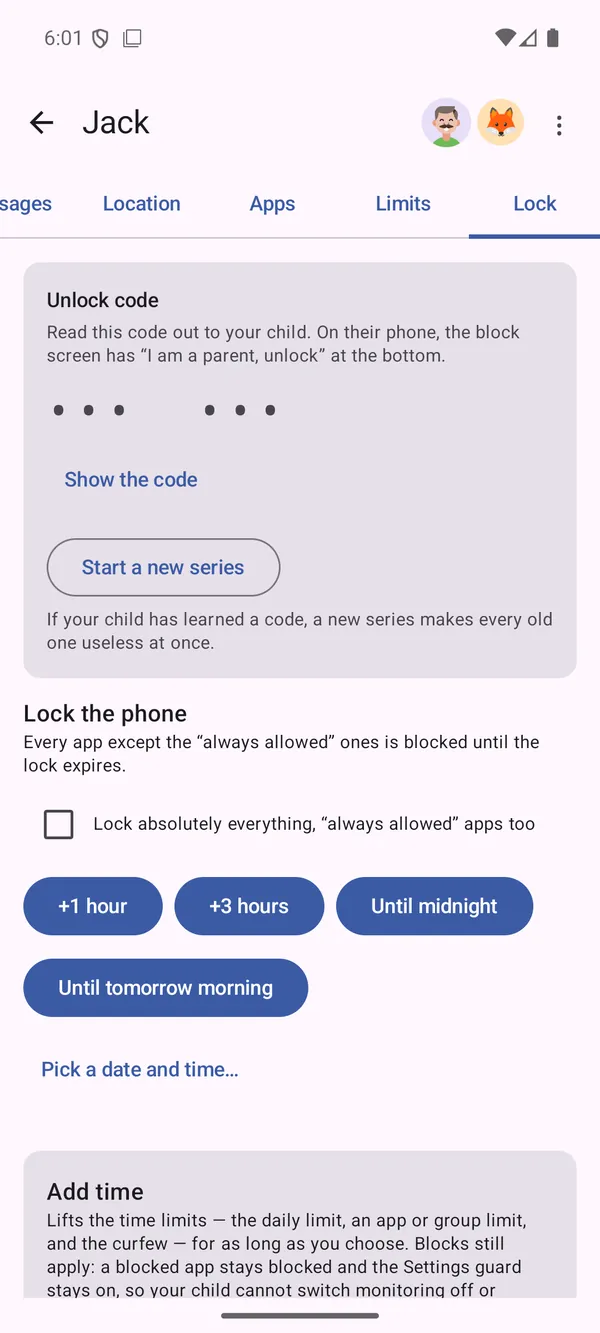
Instant lock, adding time and the unlock code

Lock and code Yours

Lock now, add time — or unlock with a six-digit code even without internet.

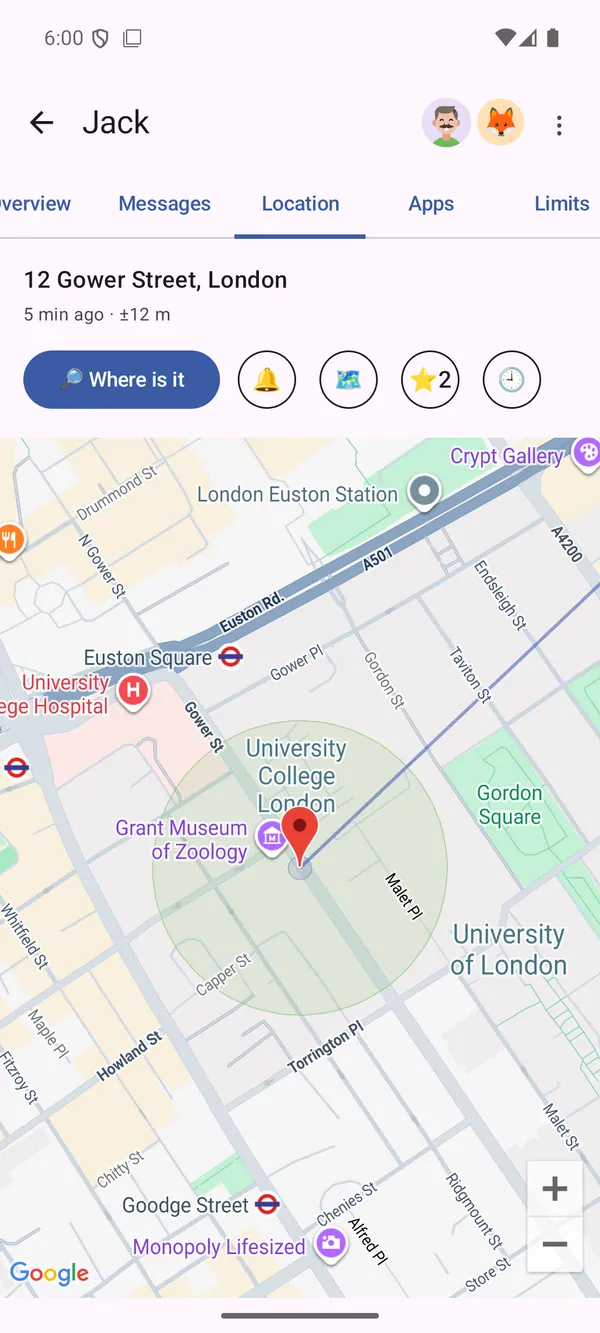
Map with the phone's last position and saved places

Location and places Yours

The phone's last position, and alerts when it arrives at or leaves a saved place.

Block screen with the character and the reason for the lock

Block screen Child's

Why an app is locked, when it comes back, and a button to ask for more time.

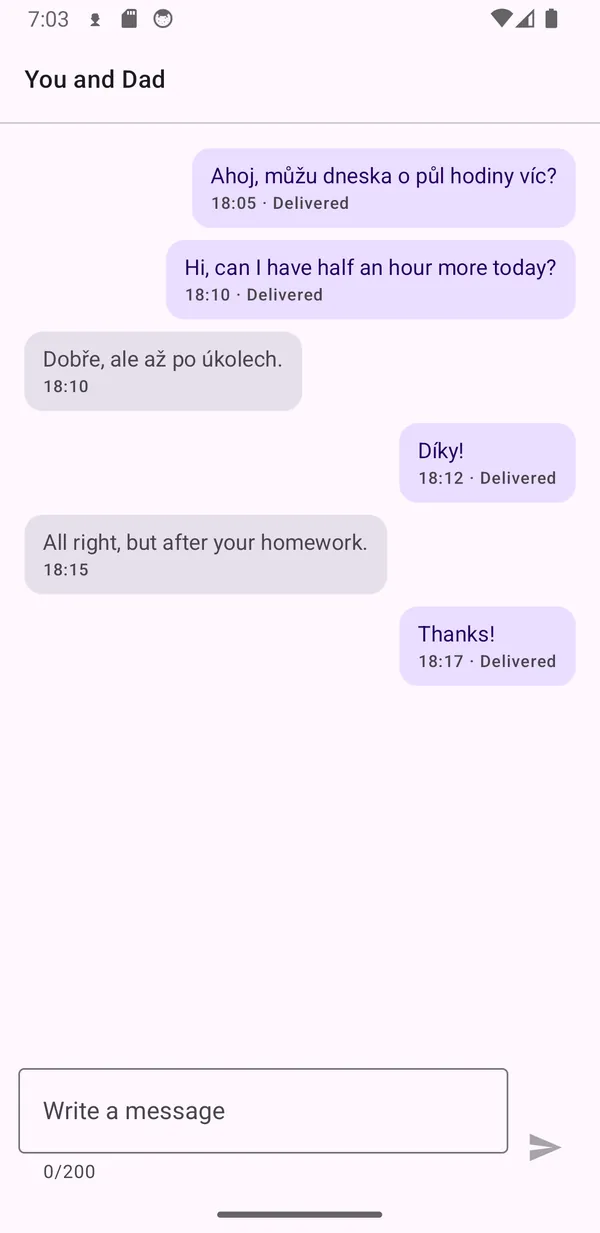
Chat between the child and the parent

Messages Child's

The child can reach you even from a locked phone. Messages delete themselves after 24 hours.

Three steps, no computer

Setting it up

  1. Create an account

    On your phone you pick "I am a parent" and sign in with an e-mail and password.

  2. Pair the child's phone

    Generate a code or a QR and your child types it once. The app then walks them through the permissions.

  3. Set the rules

    Limit, bedtime, blocked apps. A change reaches the child's phone within seconds.

You won't find this section elsewhere

Where the protection ends

This is not enterprise device management and doesn't pretend to be. The everyday ways out are closed by the app itself — and what's left are situations most families never meet. Better to read it here than in the reviews. And above all: if supervision stops working, you see it on the dashboard and get a notification.

What could stop supervisionHow it really is
Uninstalling or clearing app data Both happen on the same screen — Settings → app info — and the app keeps it shut. Even outside a lock, so a child can't wait for free hours and switch supervision off then. Block the whole Settings app in the app list and the ordinary route is closed; quick toggles like wi-fi, volume or the torch stay theirs. Registering as a device admin adds one more confirmation on top.
Picture-in-picture A floating video window sits above everything and Android won't let it be covered or closed. It would have to be running before the limit runs out — with the limit used up or under a lock the child can't start a video at all, because the app simply won't open. Split screen the app handles; this it doesn't.
Android's safe mode Extreme case A special mode Android boots into with all third-party apps disabled — this one included. A child has to know about it and start the phone into it deliberately. Preventing that needs enterprise device management, which this app deliberately stays out of.
A rooted phone Extreme case Root means a deliberately unlocked phone system. Hardly anyone does it any more — on new phones it usually means wiping everything and losing your banking apps. Whoever reaches the app's private files can work out the unlock code; a child like that would simply switch the accessibility service off anyway.

What we know about you

We collect only what makes it work

The app exists so a parent can manage screen time. Nothing else follows from that, and nothing else happens.

  • No ads and no analytics or tracking tools.
  • The database is in the European Union — Google Firebase in Frankfurt.
  • Only the parents of your family can see it. Nothing is shared or sold.
  • Location history is deleted automatically after 24 hours.
  • Messages are deleted automatically after 24 hours. It's a channel, not an archive.
  • You delete the account and all data from inside the app, in two taps.

Read the full privacy policy →

≈ €2*a month for the whole family
  • 14 days free to try, no card required.
  • One subscription covers the whole family — the second parent and the kids pay nothing.
  • Bought by whoever founded the family. Cancel any time in Google Play.
Get it on Google Play

* The price is set in Czech koruna — 49 CZK a month. Google Play converts it into your local currency, so the exact amount follows the current exchange rate and Play's own rounding. Billing goes through Google Play. When a subscription ends, supervision pauses — the app is not deleted, and everything comes back within a minute of payment.

Frequently asked

What parents ask

Does it work on iPhone?
No. Both the parent and the child side are for Android 8.0 and newer. On the child's phone the app needs the accessibility service, which iOS does not offer.
Does my child need their own Google account?
No. The child's phone signs in anonymously — your child enters no name and no e-mail. Only the parent creates an account, with an e-mail and a password.
Does the app read my child's messages or passwords?
No. From the accessibility service it takes only which app is currently on screen. The single exception is system Settings screens, where it looks for its own name to recognise the page that could switch supervision off. Nothing it sees is stored or sent anywhere.
What if I have no signal and need to unlock the phone?
The Lock tab holds a six-digit code that changes itself every 15 minutes. Type it on the child's phone and the rules switch off for 15, 30 or 60 minutes. It is verified offline on both sides, so it works with no internet at all.
Can my child get around it?
Partly, and it is spelled out above in Where the protection ends. Safe mode, uninstalling and clearing app data all stop the app. When that happens you see it on the dashboard and get a notification — silence is not the same as calm.
Can both parents use it?
Yes. The second parent gets an invite, creates their own account and joins the same child. Only the person who founded the family buys the subscription, and it covers everyone.
How do I delete my account and all the data?
In the parent dashboard, ⋮ menu → Delete account. It removes the account and every piece of the family's data — rules, usage history, location and messages. If you no longer have the app, write from the e-mail the account was created with to nezlobtatu@eadg.cz.

Try it for fourteen days

Setting it up takes a few minutes and needs no computer. If it doesn't suit you, the account and its data are gone in two taps.

Get it on Google Play