For parents
User guide
One app, two roles: on your phone you are the parent; on the child's phone it runs as the child and enforces the rules you set.
First run
- On your phone choose “I am a parent” and create an account with e-mail and password.
- Tap Add a child's phone → Generate a code. The code lasts 10 minutes and can be shown as a QR too.
- On the child's phone choose “This is a child's phone” and type or scan the code.
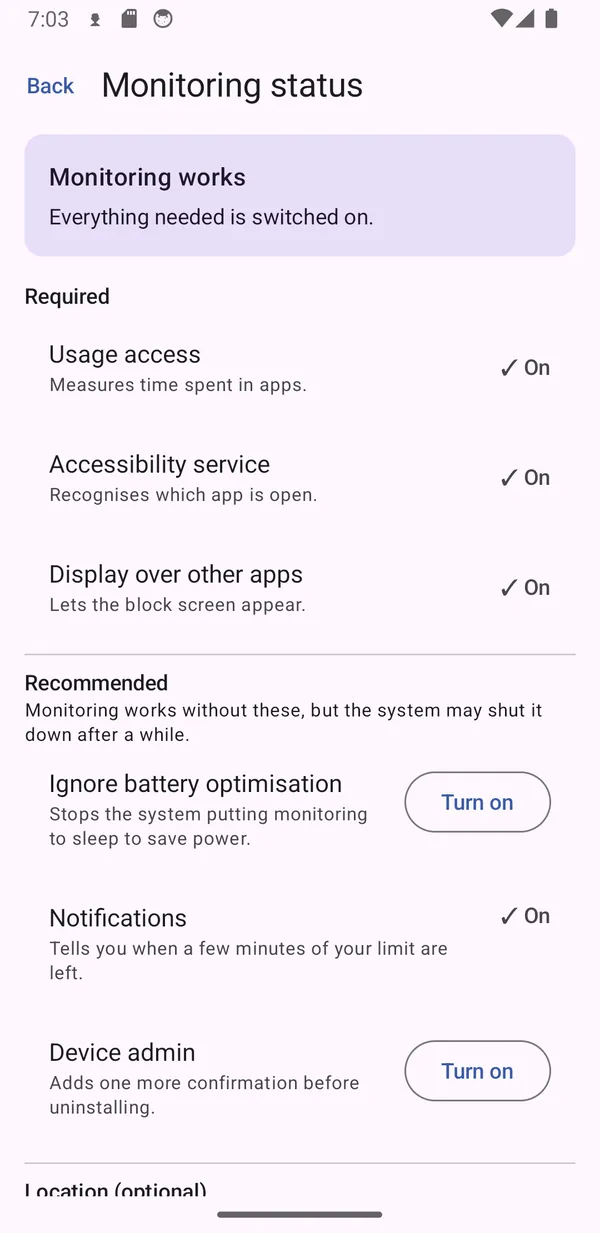
- The app then walks you through the permissions on the child's phone. Each one has a job:
| Permission | Without it |
|---|---|
| Accessibility (monitoring) | no app blocking — the heart of the app |
| Usage access | no time measuring, so no daily limit |
| Display over other apps | no block screen |
| Location (allow always) | no map and no saved places |
| Notifications | no warnings that the limit is running out |
Done — the child appears on your dashboard within a minute, battery and monitoring state included.
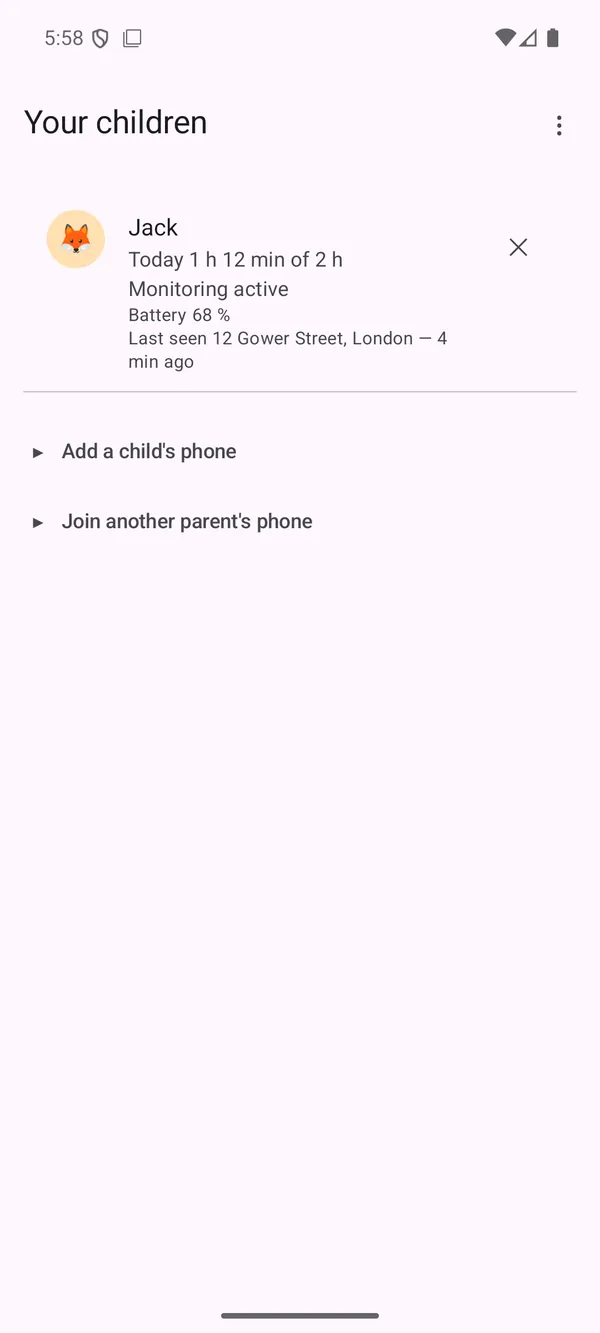
A second parent? In the ⋮ menu of a child, generate an invite — the other parent creates their own account and joins with the code. Unpairing a phone stays with whoever founded the family.
Where things are (the child's screen on the parent side)
| Tab | What it holds |
|---|---|
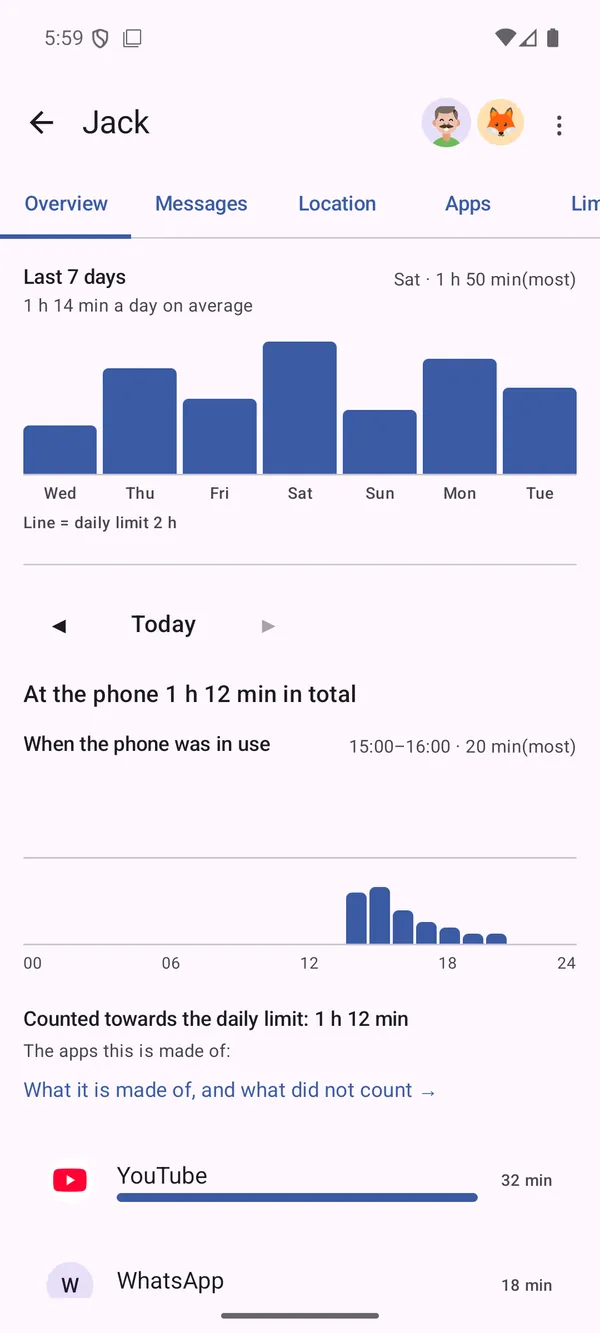
| Overview | Time today and across the week, by hour and by app. Tapping a day opens the breakdown: what counted toward the limit, what did not, and why. |
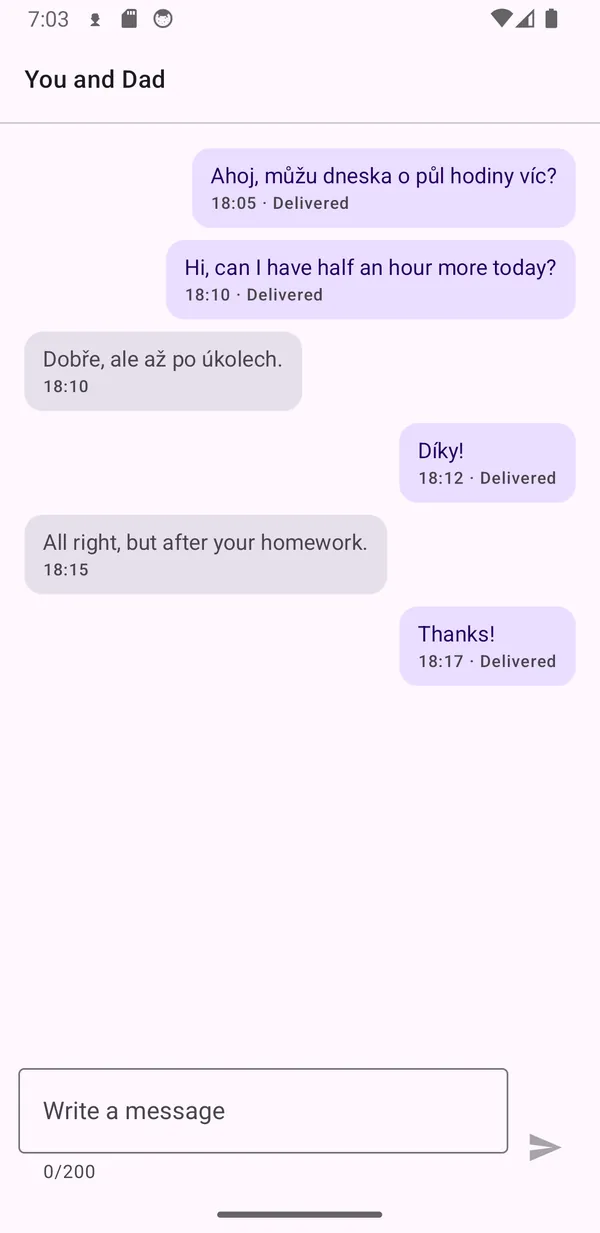
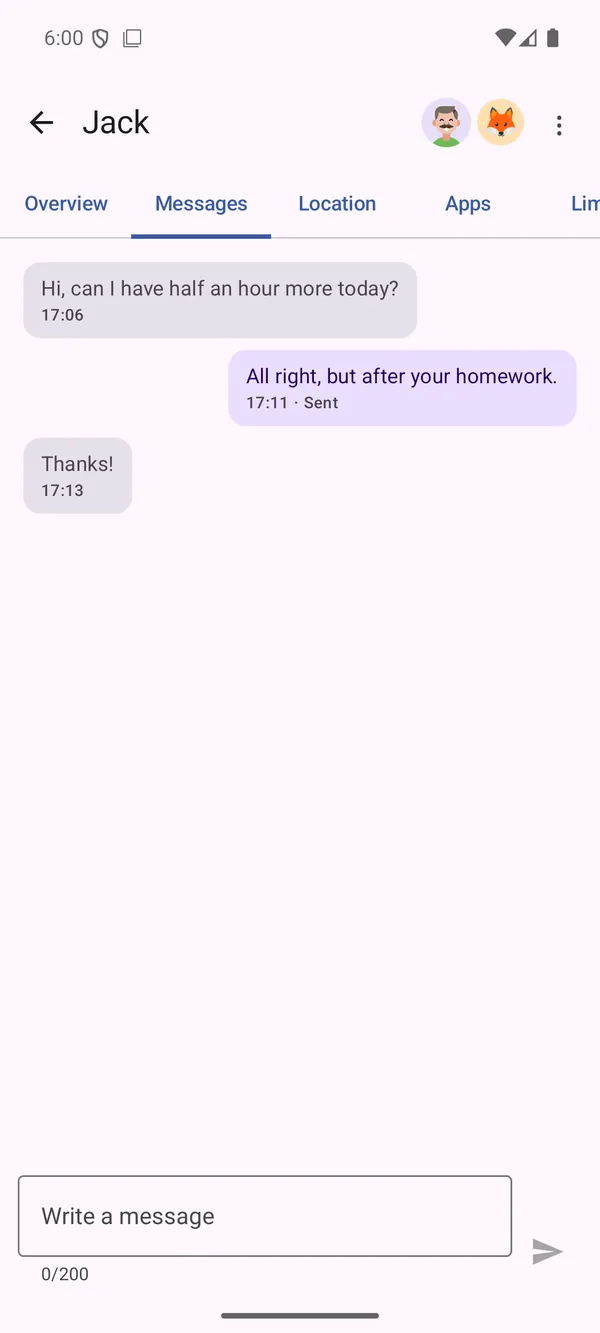
| Messages | The chat with the child. Messages delete themselves after 24 hours — it is an “I need you now” channel, not an archive. |
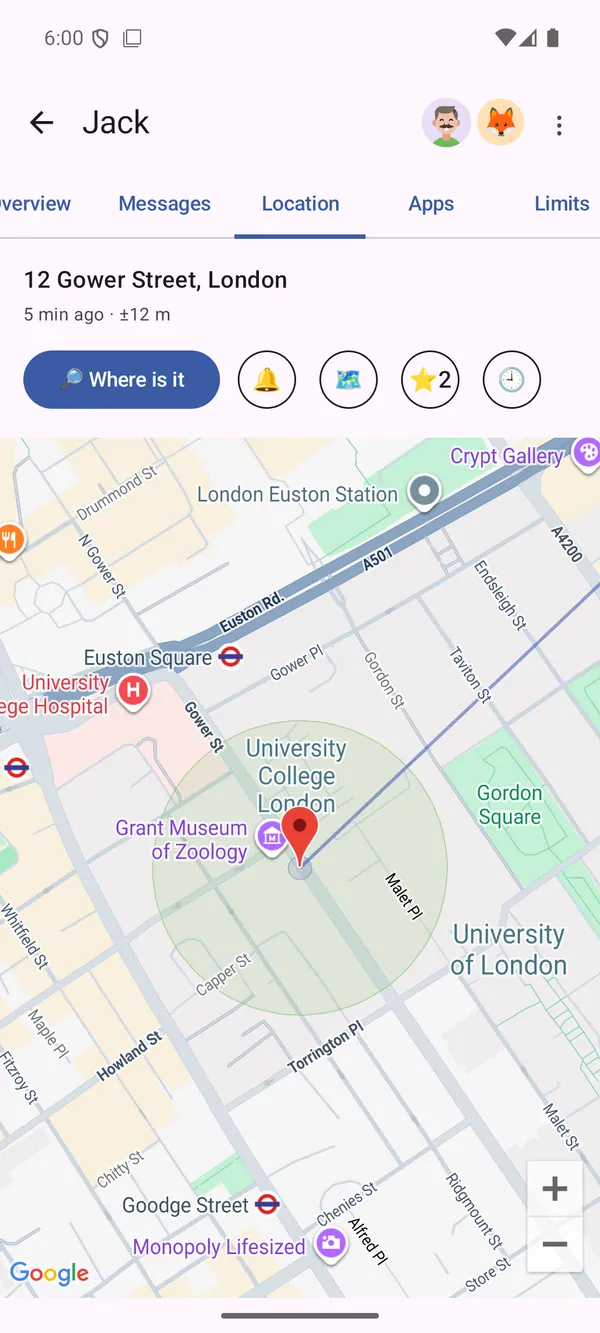
| Location | A map with the phone's last position (refreshes ~every 15 minutes; “Where is it” asks right now). Tap the map to save a place (Home, School…) — arrivals and departures then reach you as notifications. |
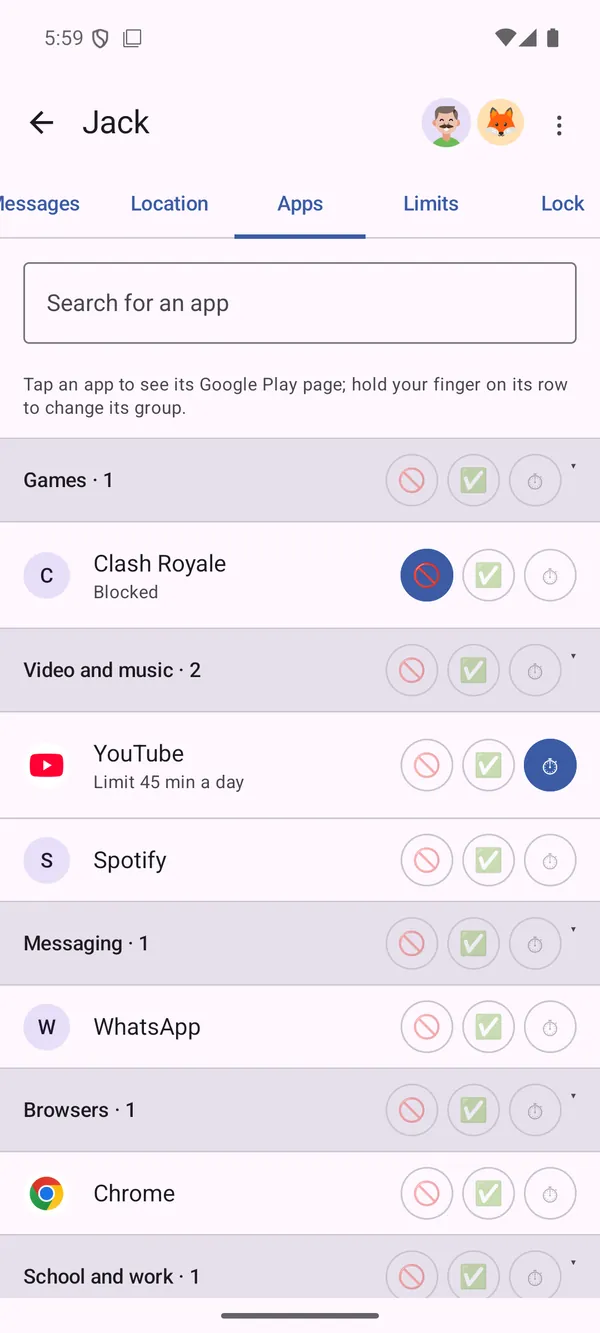
| Apps | Every app on the child's phone, in groups (Games, Social…). Each can be blocked / always allowed / capped per day; the same works for a whole group at once. Long-press moves an app between groups; a tap opens the app's Google Play page — handy for apps you don't recognise. Search at the top, and a “Phone settings” section with recommendations. |
| Limits | The curfew (allowed hours), per-day exceptions, the overall daily limit and Happy hours. |
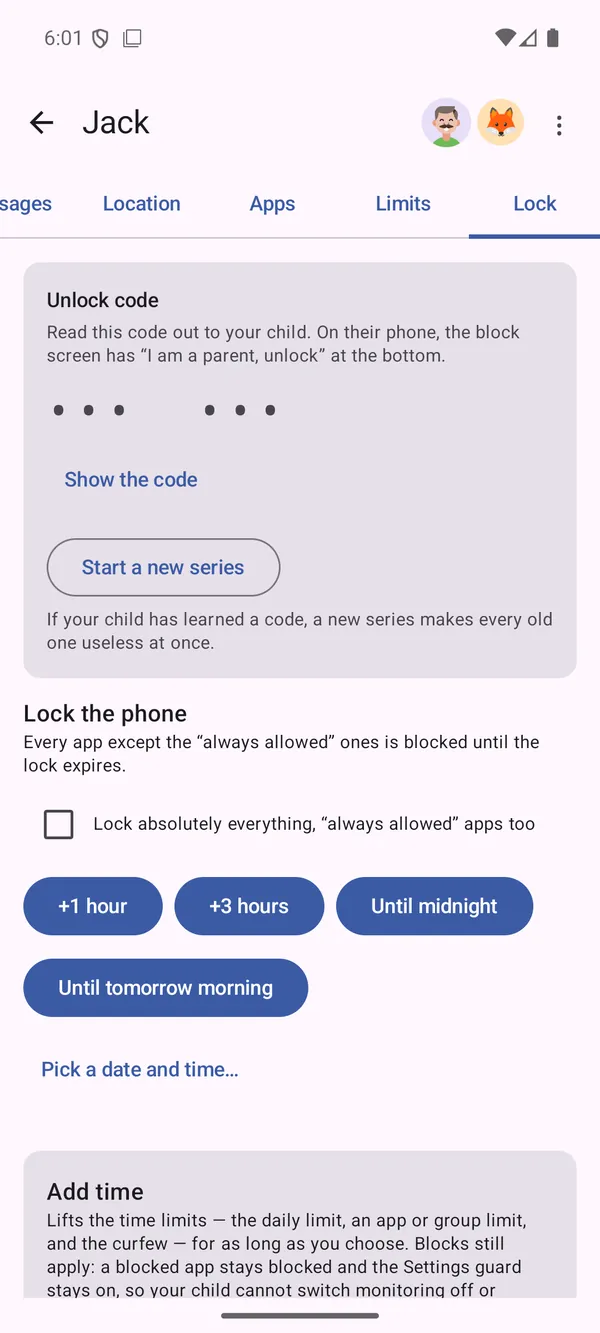
| Lock | Lock right now (an hour, until morning, custom) or add time. Children's time requests are decided here too — along with what the child wrote you. |
How the daily limit works
- Only “ordinary” apps count. Not counted: the home screen, calls, the keyboard, apps marked “always allowed”, blocked apps, and time during Happy hours.
- The child is warned before it runs out (15 and 5 minutes ahead); then apps lock until midnight. Calls, the home screen and “always allowed” apps keep working.
- Besides the overall limit, one app or a whole group can carry its own cap (“games, 30 minutes a day”). A group's cap is shared — an hour of games is one hour combined.
- The child can ask for more time (10/15/30 min) — you decide in Lock, and approval adds time; it does not unlock the phone.
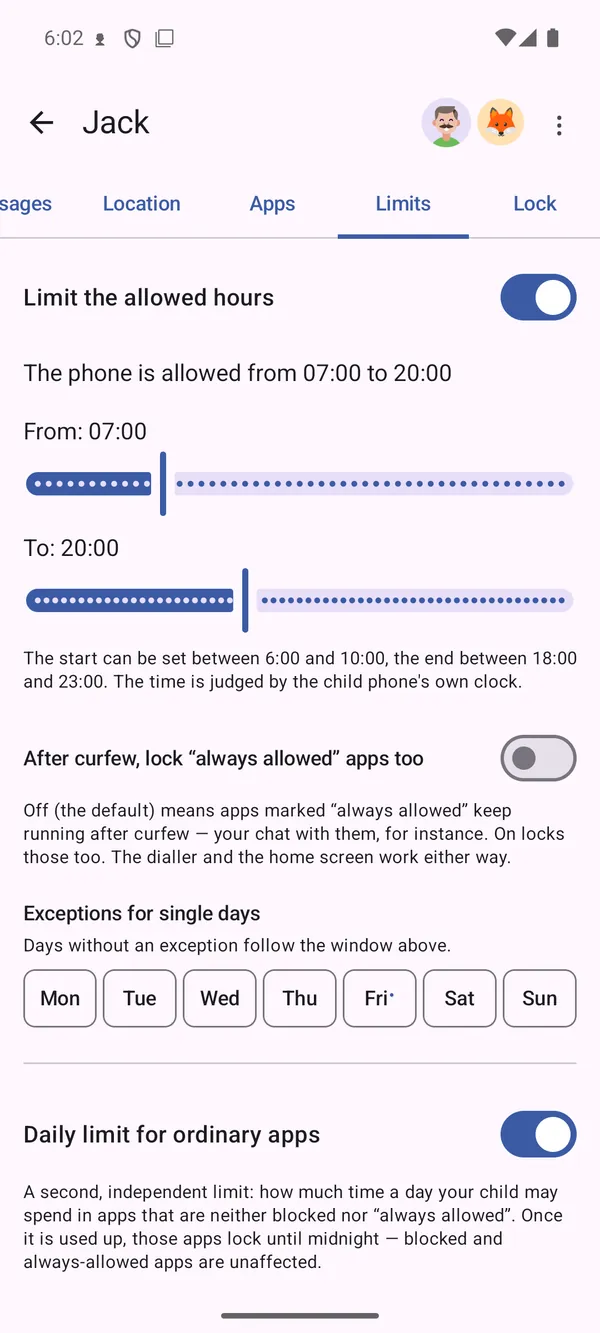
Curfew
Allowed hours, e.g. 07:00–20:00 — outside them the apps are locked. Individual days can carry exceptions (later on Friday, unrestricted Sunday). Calls and the home screen always work; whether the curfew also closes “always allowed” apps is your choice with a switch.
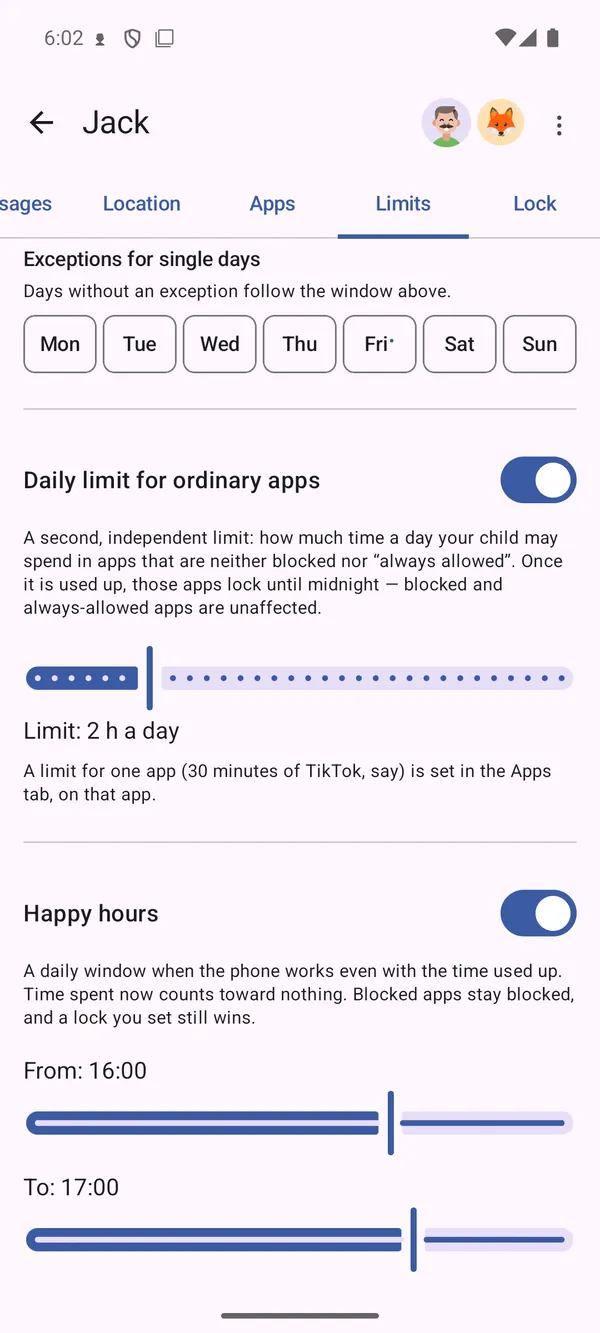
Happy hours
A daily window in which the phone works even with the limit used up and time counts toward nothing — a guaranteed slot (after homework, say) that a morning binge cannot eat. Blocked apps stay blocked and your lock still wins. Lives in Limits.
Messages
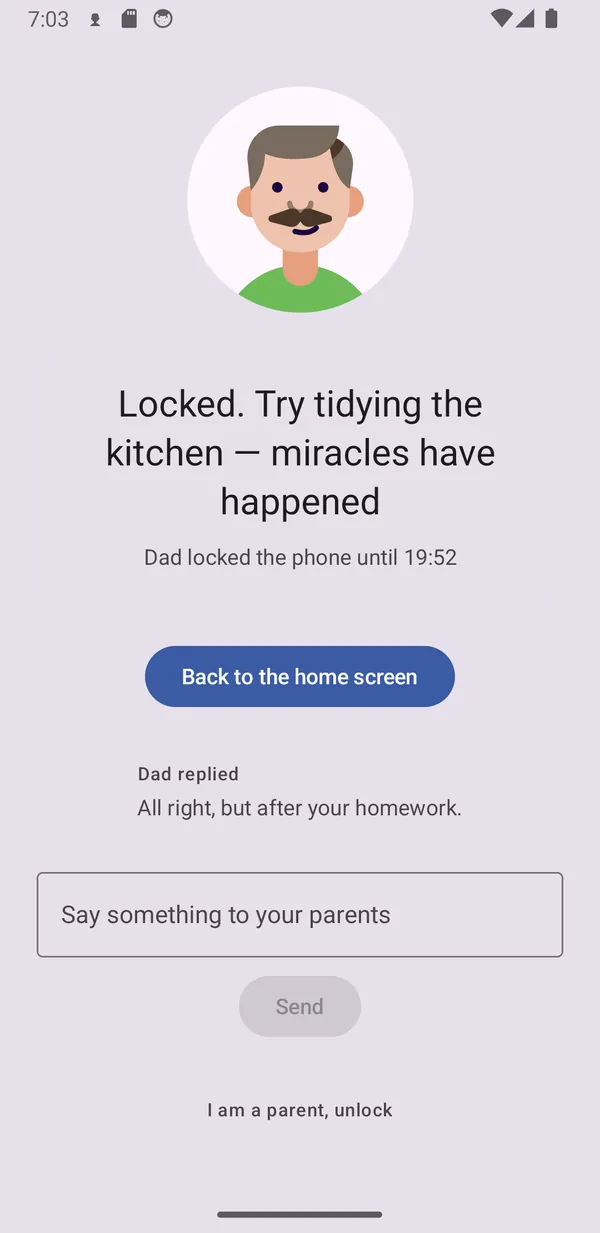
The child can write to you even from a blocked phone — straight from the block screen. You get a notification with the full text; your reply rings the child's phone and appears on the block screen too. Short messages up to 200 characters, deleted after 24 hours.
Ringing the phone
When a child cannot find their phone — or when they are not answering — make it ring. The Location tab has a 🔔 button beside “Where is it”. The phone rings loudly even when it is set to silent (it goes out on the alarm channel, which the silent switch does not mute) and vibrates. The child stops it from the notification or in the app, it stops by itself after two minutes, and you can stop it remotely. Once it has rung you see a confirmation with the time — which is how you tell “it rang in the next room” from “the phone is switched off”.
- A phone that is off, flat or offline will not ring. The command expires after two minutes, so a phone that reconnects later does not start ringing in a pocket.
- Do Not Disturb with alarms turned off silences it. Overriding that needs a permission that would make a parental app look like spyware; we do not ask for it.
- The alarm volume is borrowed for those two minutes and put back afterwards, so the child's own morning alarm is never left at maximum.
Location & places
- The map shows where the phone is — not necessarily the child. Read it that way.
- A saved place announces arrivals and departures, both after a ~2 minute confirmation: an arrival by actually staying there, a departure by not coming straight back. A bus ride past the school does not cry wolf — and a phone whose position wobbles for a moment does not send “left” followed by “back again”.
- The smallest radius is 100 metres — below that, GPS measures its own noise, not an arrival.
- Location history deletes itself after 24 hours.
What the child sees
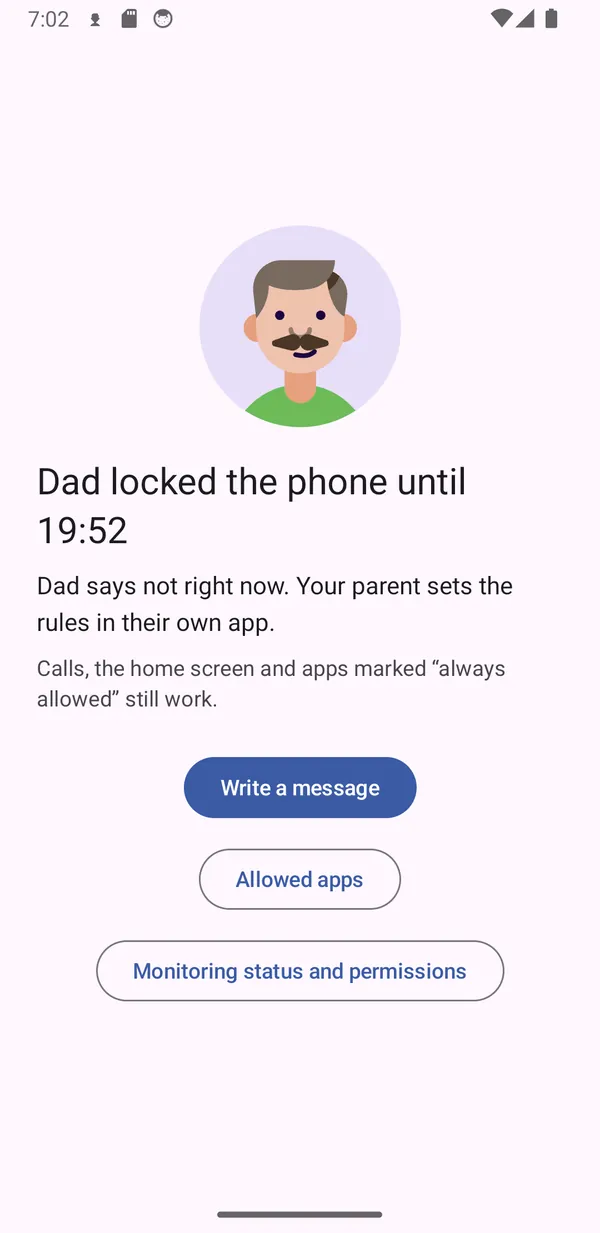
- The character (“Dad” — you pick the name and the face), how much time is left today, when the curfew applies and whether Happy hours are on. They know you can see the phone's location — the app says so.
- On the block screen: why the app is locked, when it comes back, buttons to ask for time, and a “write to your parents” box.
- The I am a parent, unlock button is for you: the six-digit code from your Lock tab unlocks the phone even offline — handy when you lock your own phone by mistake or have no signal. It changes every 15 minutes, so there is nothing to remember and a code read over your shoulder does not last.
Recommendations that keep the monitoring standing
- Block the Settings app (it is pinned at the top of the app list with an explanation). Without that, a resourceful child can reconfigure the phone. Quick toggles (wi-fi, volume, torch) remain theirs.
- Try the unlock code once (Lock tab) — it is your key for moments without internet, and worth a dry run while you are not in a hurry. There is nothing to set up or remember; the code is already there.
- On Samsung/Xiaomi and similar phones, allow the app to run unrestricted in the background — the app itself points you to the right screen when the manufacturer starts killing it.
Where the protection honestly ends: uninstalling and clearing the app's data both happen on one Settings screen, and the app keeps that screen shut even outside a lock — with Settings blocked, the ordinary route is closed. What's left are the extremes: Android's Safe Mode, which disables all third-party apps including this one, and a rooted phone. The app does not pretend otherwise — when monitoring stops working, your dashboard and a notification say so. The full list is on the home page.
Troubleshooting
| Symptom | What to do |
|---|---|
| “Monitoring inactive” on a child | Open the app on the child's phone → “Monitoring status and permissions” — it shows which permission dropped and restores it with one tap. |
| The child has not reported for a while | Usually a dead battery or night-time (quiet hours mute alarms). “Where is it” sends a wake-up signal. |
| No notifications reach you | Check the app may post notifications on your phone (Android 13+ asks on first run). |
| Blocking “let something through” right after boot | For ~30 seconds after a restart the system is still raising services; monitoring then catches up on its own. |
Contact
Anything broken or missing: nezlobtatu@eadg.cz